Newsletter Subscribe
Enter your email address below and subscribe to our newsletter

Enter your email address below and subscribe to our newsletter

Developer Mode on iPhone is an essential setting for developers, testers, and advanced users who need to install test builds, run debugging tools, or use development environments like Xcode. Starting from recent iOS versions, including iOS 27 Beta, Apple has made this feature more secure, which is why many users are unable to find it immediately after updating.
If you are trying to enable developer mode on iPhone, this guide explains exactly how it works, why it may not appear, and how to turn it on correctly.
Developer Mode is a built-in iOS security feature that unlocks system-level capabilities required for app development and testing.
Once enabled, it allows iPhone users to:
On iOS 27 Beta, Apple enforces stricter security validation, meaning Developer Mode will not appear unless the device meets specific system conditions.
One of the most common issues users face after updating is that the Developer Mode option is missing in Settings.
In most cases, this is not a bug. It happens because iOS requires a trusted development trigger before exposing the option.
Typical causes include:
This is why searches like iOS 27 developer beta not showing Developer Mode have become increasingly common.
If your device meets the requirements, follow these steps:
First, connect your iPhone to a Mac or PC using a Lightning or USB-C cable. Unlock your device and tap Trust This Computer when prompted.
Next, if you are using a Mac, open Xcode or any Apple developer environment. Allow the system to recognize your iPhone.
After the connection is established, restart your iPhone.
Once the device restarts, open:
Settings > Privacy & Security > Developer Mode
If the option is available, enable it. The device will restart again, and after reboot, confirm activation.
At this point, Developer Mode on iPhone iOS 27 Beta is fully enabled.
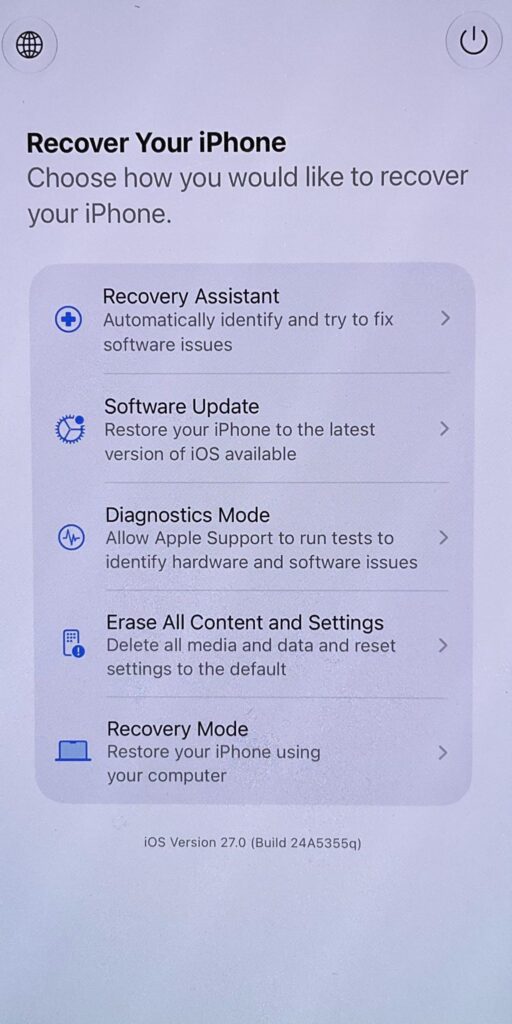
Not all users have access to Xcode or a Mac. In such cases, system recognition tools such as Tenorshare iCareFone can help establish a stable connection between iPhone and computer, which is often required for Developer Mode to appear.
First, install iCareFone on your Windows or Mac computer and connect your iPhone using a USB cable.
Once connected, ensure the device is unlocked and trusted. The software will detect the iPhone and establish a stable communication channel between the system and the device.

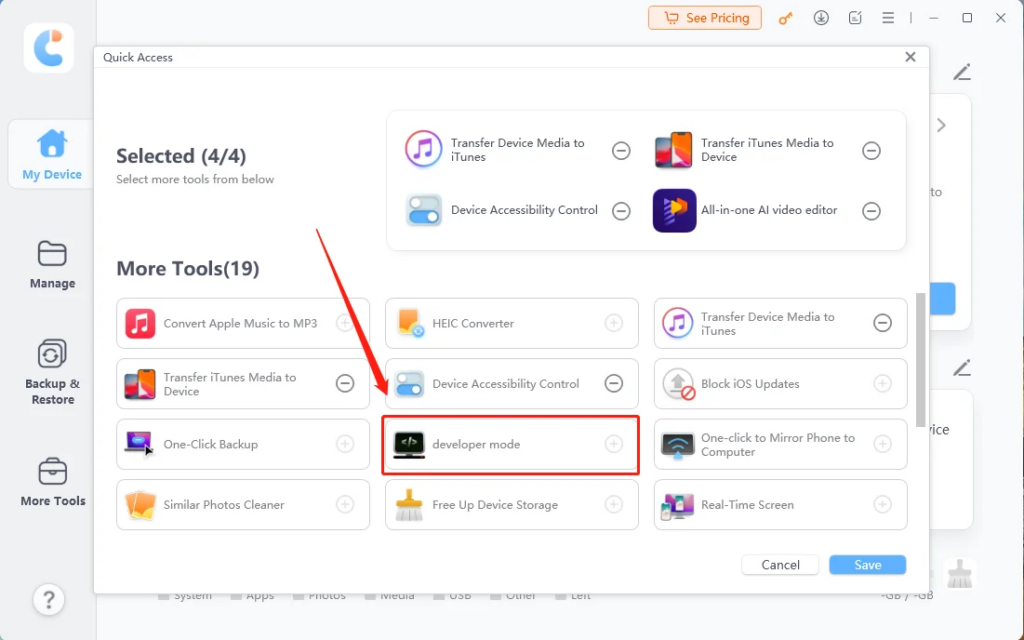
After the connection is confirmed, restart the iPhone.
Then go to:
Settings > Privacy & Security

In many cases, the Developer Mode option will now appear and can be enabled manually.
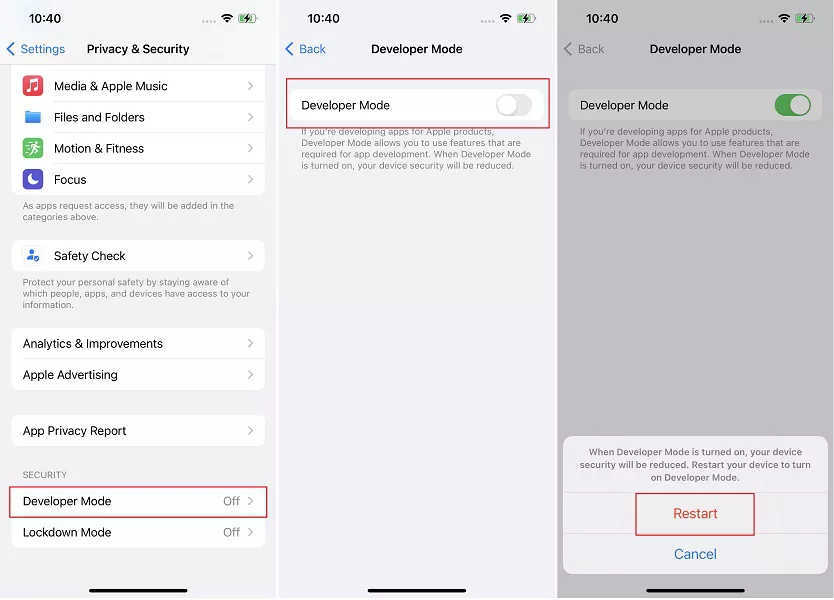
This method is commonly used when users search for where to turn on developer mode iPhone or how to enable developer mode on iOS16/iOS 27 beta without using Xcode.
Compared to iOS 16, Apple has tightened the activation flow for Developer Mode. The biggest change is that the option is no longer always visible by default.
Instead, iOS 27 Beta requires:
This makes the feature more secure but less accessible for casual users.
Restart your iPhone and reconnect it to a trusted computer. This often forces the system to re-check developer eligibility.
Update to the latest iOS 27 beta build, as earlier versions may contain UI or permission bugs.
Reset Location & Privacy settings and reconnect the device again.
You can find it in Settings > Privacy & Security once the device is properly connected to a trusted computer.
Not always. In some cases, connecting to a trusted computer is enough, but Xcode often triggers the option faster.
Apple hides it until the device meets security and trust conditions, especially on beta versions.
Enabling Developer Mode on iPhone iOS 27 Beta is straightforward once the system recognizes a trusted connection. Whether using Xcode or a device management tool, the key requirement is establishing communication between your iPhone and a trusted computer.
Once activated, Developer Mode unlocks essential tools for app testing, debugging, and advanced iOS development workflows.