Newsletter Subscribe
Enter your email address below and subscribe to our newsletter

Enter your email address below and subscribe to our newsletter
Did you format the SD card mistakenly before everything was copied, and now it’s completely empty? Is the data lost forever? Is it possible to recover data from a formatted SD card? Fortunately, the answer is often yes. But the recovery rate depends. To increase the recovery rate, you need to stop using the SD card as soon as possible and remove the card from your device. Ready to retrieve data from the formatted SD card? Keep reading to get your precious data back.
Can files be recovered from a formatted SD card? It depends on the type of formatting. Disk formatting can be performed in two ways: quick and full.
A quick format doesn’t truly delete everything. The file system is rebuilt, but your data isn’t erased or destroyed. It simply becomes invisible to the operating system, like a message written in invisible ink. So, after a quick format, the data can be recovered with the help of data recovery software.
A full format is a much more thorough process. It doesn’t just hide your files – it completely deletes them from the drive. Therefore, after a full format, everything is deleted from the storage and can’t be recovered with any data recovery tool.
In some situations, you can restore data from a formatted SD card if it’s not overwritten by new data. You can choose a company specialized in data recovery. However, you may need to ship your formatted SD card to the companies and they always charge several hundred dollars or more to recover your files.
Therefore, using a data recovery utility like iToolab RecoverGo Windows Data Recovery is a good way to go. You can restore files from a formatted SD card on your own. Thus, all your recovered data is safe and won’t be leaked.
Why should you choose iToolab RecoverGo?
Acting fast can increase the recovery rate. Now, it’s time to download iToolab Recover Go and scan your formatted SD card.
Step 1. After installation, launch iToolab RecoverGo Windows Data Recovery. Click on the “SD Card” option and connect your formatted SD card to the computer.
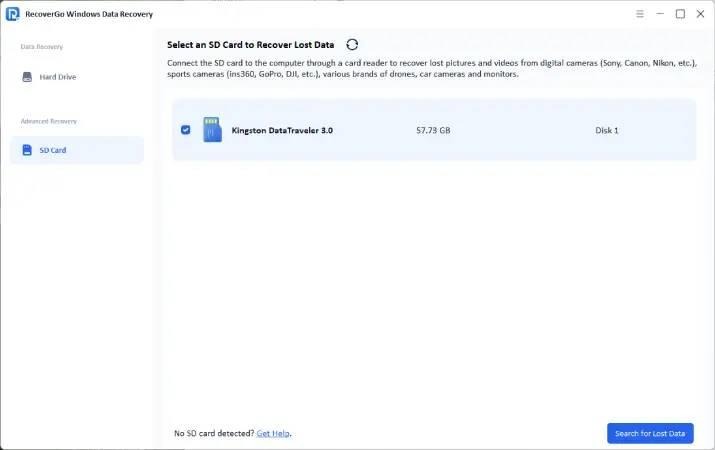
Step 2. RecoverGo will start to scan the SD card after you click the “Search for Lost Data” button.

Step 3. The scanning time depends on the amount of data. Once done, you can use the search and filter feature to locate your data. Then preview it and save it to another different location
There are some free methods if you can’t afford a paid tool. Free methods might be able to recover a few lost files, but are not as fast or effective as professional ones.
When you regularly maintain a backup of your SD card, it is not difficult to restore lost files. Without additional applications, you can recover lost data. Here are the steps to follow:
In case you can not find the lost file in your backup, Microsoft Store lets you find it with Windows File Recovery, a command-line application. It retrieves deleted files on internal drives, external drives, SD cards, and USB drives. It currently works well with recently deleted files and files that have not been overwritten by new data. Here are the steps to follow:
Regular Mode Examples:
Extensive Mode Examples:
Important Notes:
The source and destination drives should be different. To recover from the system drive (by default C:), use /n <filter> to specify the files or folders you want. Microsoft automatically builds a recovery folder called Recovery_<<date and time> on the destination drive.
When prompted, type Y to start recovery. Recovery time depends on drive size. Press Ctrl+C to stop the process if needed.
SD card recovery is often possible, especially after a quick format when data isn’t overwritten. But success isn’t guaranteed. If the card was fully formatted or new data overwrote the old data, recovery may fail.
You cannot directly undo SD card formatting because there’s no built‑in “undo” feature. But you can try recovery software to scan for lost files before they are overwritten. Stop using the card right away to improve the chances of recovery.
Yes, free tools like Recuva, or PhotoRec can recover deleted files. However, these free versions often have limits, may be harder to use, and usually have lower success rates.
Recovering data from a formatted SD card is possible with the right tools and methods. Using professional software like iToolab RecoverGo Windows Data Recovery or free options such as backups and Windows File Recovery can restore important files. Act quickly, avoid overwriting data, and follow the proper steps to maximize the success of your recovery.