Newsletter Subscribe
Enter your email address below and subscribe to our newsletter

Enter your email address below and subscribe to our newsletter

Most probably, running into the ‘this document is either deleted or not currently accessible’ glitch on Mac has landed you on this page. This error manifests when you try to open a Word or Excel file. But the problem is that there’s not just one thing that causes this problem. In fact, there are different reasons, and each cause calls for its own resolution. So, let’s view the most frequent reasons you see this error and 8 options to resolve it accordingly!
The Excel/Word ‘this document is either deleted or not currently accessible’ error means your Mac can’t find the Word/Excel file, or you don’t have permission to open it. It can also happen if the file was moved, renamed, or damaged.
| Problem | Solution |
| The file may be in the Trash or permanently removed. | Option B: Check the Trash Folder, Option C: Recover Permanently Deleted Files with 4DDiG |
| The file’s location or name has changed, so the app can’t find it. | Option A: Check the File’s Path |
| The file’s data is damaged. | Option E: Repair File Permissions, Option F: Use the AutoRecover Feature, Option C: Recover Permanently Deleted Files with 4DDiG |
| You don’t have access, especially on shared accounts. | Option E: Repair File Permissions |
| The file may not be accessible or may have been removed. | Option G: Utilize a Time Machine Backup, Option C: Recover Permanently Deleted Files with 4DDiG |
| Word/Excel may be outdated or have conflicts. | Option H: Update Microsoft Word |
| A third-party add-on or extension is conflicting with your document. | Option D: Boot into Safe Mode |
Here’s how you can troubleshoot an issue like ‘This document is either deleted or not currently accessible’ on Mac in 8 ways. Pick an option based on the reason for this issue:
Your document might be misplaced rather than inaccessible or deleted. So, first check the folder where you originally saved it. If you don’t see it there, use Spotlight to search your Mac for the file. If it’s been moved, open it from its new location.
A document might be accidentally erased during regular file management or cleanup. When that happens, it’s shifted to the Trash instead of being permanently removed. So, if you’re getting the ‘this document is either deleted or not currently accessible’ error on Mac, look into the Trash folder. If you haven’t emptied it yet, your document might still reside there. Thus, to restore it, follow the steps beneath:
Step 1: Open the “Trash” from the dock. Look for your document. Right-click it.
Step 2: Select “Put Back.” This will return the document to its original location.
In case you received the Excel/Word ‘this document is either deleted or not currently accessible’ error due to permanent file deletion, employ a specialized Mac data recoveru tool. 4DDiG Mac Data Recovery can retrieve files that are removed by mistake, permanently gone, corrupted, formatted, hidden, or missing. Here are more benefits you’ll get with this tool:
Here’s how to retrieve permanently erased documents with this tool:
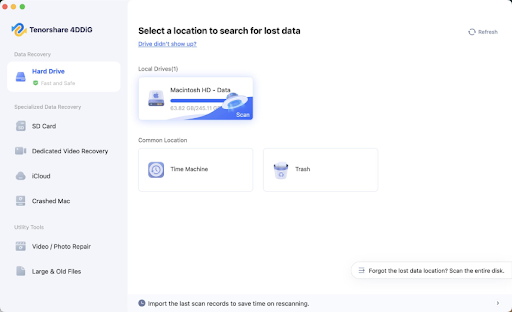
Step 1: Open the Mac document recovery tool on your computer. Then, pick a location where you lost your document. Pick only the “Document” file type to scan. Start scanning.
Step 2: While scanning, you can filter files by status, type, size, modified time, or tags, or employ the search box to find specific files.
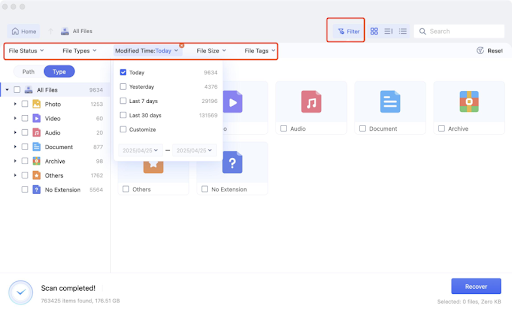
Step 3: After scanning, click on a file type to preview its contents before recovery. Hit “Recover.” Pick a place to save the recovered files, on your Mac or a cloud drive.

An error like ‘this document is either deleted or not currently accessible’ on Mac might be caused by a third-party add-on or extension. In such a case, you’ll need to boot your document in Safe Mode. This will disable third-party extensions that might interfere with your document, resulting in this error. Follow the instructions beneath to boot your Word/Excel document into Safe Mode:
Step 1: Press the power button. If it won’t shut down normally, hold the power button for 15 seconds until it powers off.
Step 2: Boot your Mac into Safe Mode. The process will be slightly different based on the chipset:
Step 3: During boot, the process is similar for both Intel and Apple Silicon Macs. So, wait for the Apple logo, progress bar, and login screen, then confirm Safe Boot is active.
Step 4: Open the document in the Safe Mode. If it opens without any error, the issue might be because of an add-in. So, you can deactivate it.
Step 5: Restart your Mac. Then, open Microsoft Word or Excel. Click “Tools.” Next, choose “Templates and Add-ins” or “Excel Add-ins” from the menu.
Step 6: Untick any add-ins that are activated. Hit “OK.” Close and reopen Word/Excel to check if the issue is resolved.
If you can view the document but can’t access it, then your files and folders might have “Read & Write” permissions deactivated. However, you can activate this privilege to resolve the Excel/Word ‘this document is either deleted or not currently accessible’ error:
Step 1: Open Finder. Then, right-click the document. Tap “Get Info.”
Step 2: Move to “Sharing & Permissions.” Then set your user account to “Read & Write.”
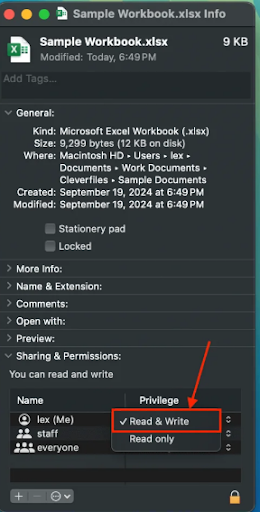
Step 3: Close the window and try opening the document again.
Microsoft Word/Excel has an AutoRecover feature that automatically saves backup copies of your work. This can help restore documents after a crash or sudden shutdown, resulting in a malfunction like ‘this document is either deleted or not currently accessible’ on Mac. Here’s how to employ the AutoRecovery feature:
Step 1: Open “Finder.” Then, tap “Go” in the menu. Select “Go to Folder.”
Step 2: Paste the following path according to your document type. Hit “Enter” afterward:
Step 3: Look through the files to find your document. Drag it onto the Word/Excel icon in the Dock to open it.
In case your Word document was removed or became inaccessible, you can restore its earlier version by employing a Time Machine backup. If you’ve activated the backup, and your Word/Excel file is included in it, here’s how you can get it back:
Step 1: Press “Command + Spacebar.” Then, search for “Time Machine.”
Step 2: Execute “Time Machine.” Next, use the timeline or search to find your Word/Excel document.
Step 3: Press the “Spacebar” to preview the document. Confirm it’s correct. Hit “Restore” to restore the document.
Microsoft Excel/Word updates fix bugs and improve performance. If a file was created or shared using a newer version of the app, it may not open properly on an older version. Therefore, update Excel/Word through the Mac App Store to resolve this issue:
Step 1: Open “Finder.” Then, choose “Applications.” Open the “App Store.”
Step 2: Click “Updates.” Look for Microsoft Excel/Word. If an update is available, hit “Update.”
Step 3: Once the app is updated, reopen your document from the app’s “File” menu.
The ‘This document is either deleted or not currently accessible’ error on Mac often materializes due to misplaced files, accidental removal, permission issues, add-in conflicts, or outdated software. Checking the file path, Trash, permissions, AutoRecover folders, Time Machine backups, and updating Word or Excel usually troubleshoots the problem. If the file is permanently removed or corrupted, employ a tool like 4DDiG Mac Data Recovery. It offers a fast and successful selective file recovery from various storage media, a free preview, and support for 2000+ file types.