Newsletter Subscribe
Enter your email address below and subscribe to our newsletter

Enter your email address below and subscribe to our newsletter

Sometimes, a fatal hardware error can occur when trying to access your hard drive in Windows File Explorer. It can be a real headache for many, as this error not only prevents you from performing read and write operations on the hard drive but also leads to permanent data loss.
This is the message format of the error— Location is not available. X:\ is not accessible. The request failed due to a fatal device hardware error. As you can see, Windows doesn’t offer much information to help resolve the issue.
No worries, as we’ve got you covered! In this full guide, we’ll delve into the common reasons behind this error and provide you with six effective solutions. Let’s get started!
Unfortunately, there are many different factors that contribute to a fatal device hardware error. If you’re not computer savvy, diagnosing the root cause can be quite challenging. Some common reasons include:
Before discussing how to fix a fatal device hardware error, we strongly recommend first recovering data from the problematic drive. Even if the hard disk will die soon or the chances of DIY repair are low, there’s no need to worry about data loss. Tenorshare 4DDiG is a professional tool that can help you easily retrieve files from inaccessible storage devices, such as HDDs, SSDs, USB drives, etc. Its deep scan feature will retrieve as many of your videos, pictures, audio files, and documents as possible.
Plus, this data recovery software is beginner-friendly, with an intuitive interface and an impressive success rate. Whether you’re using a Windows PC or a Mac, 4DDiG can always be a lifesaver.
Following steps are how to recover data from your affacted hard drive using 4DDiG:
Step 1: To begin, download this recovery tool from their official website. Once installed, run it and then connect your problematic hard disk to your computer. Choose the hard drive from the list of available storage devices displayed on the main interface. Then, click on “Scan” to proceed.
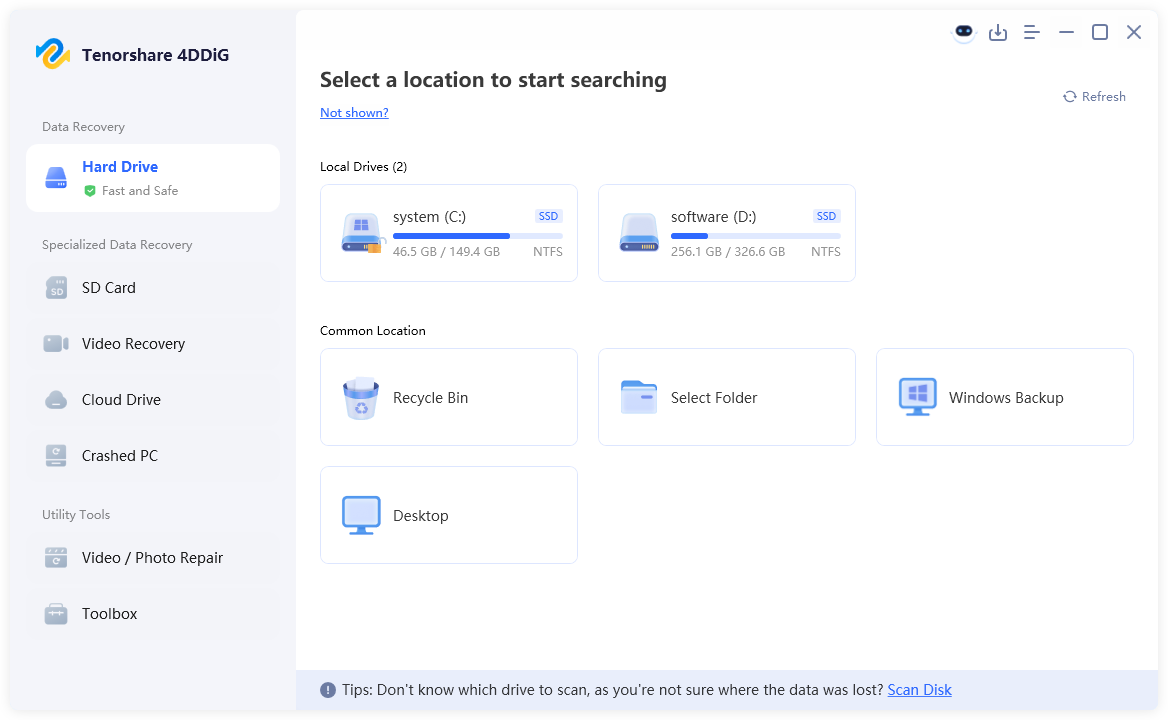 Step 2: The program will begin a thorough scan of the affected hard drive. This might take a while, but 4DDiG allows you to stop or pause the scan at any time. After the scan is complete, recoverable files will be categorized by their path and type.
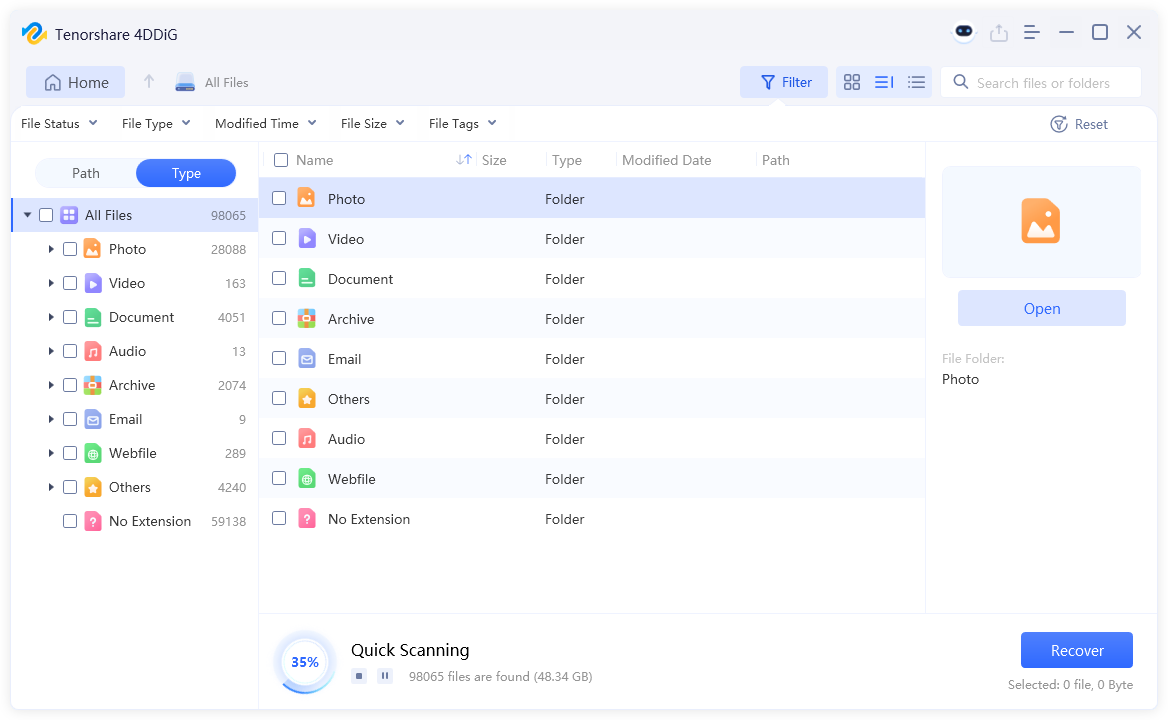
Step 3: After carefully reviewing the recovered files, select them and click on the “Recover” button. To avoid data overwriting, it’s best to save them to cloud storage like OneDrive or Google Drive.

When you see the error message “The request failed due to a fatal device hardware error,” the very first thing to do is to eliminate any potential connection issues. This includes reconnecting the hard drive, switching to a different USB port, and replacing the USB cable with a new one. It’s pretty common for USB cables to experience wear and tear after long-term use. If possible, try connecting the hard drive to a secondary computer to see if connection issues are actually to blame.
A fatal hardware error can be triggered by drive letter conflicts. To be specific, two or more devices on your computer share the same drive letter. In such a situation, you will need to reassign a unique letter to the programmatic drive. Here is how:
Step 1: Begin with pressing Windows + R and inputting diskmgmt.msc. Next, click “OK” to open the tool.
Step 2: Perform a right-click on the storage device in question. Proceed by selecting the “Change Drive Letter and Paths…” option.

Step 3: Click on “Change.” Choose a unique drive letter for the affected drive. Finally, hit the “OK” button.

If the error message ‘The request failed due to a fatal device hardware error’ still pops up on the screen, it’s likely because you haven’t updated the driver for the problematic hard disk in a long time. To update or reinstall it, follow the given steps:
Step 1: Opt for Device Manager after pressing Windows + X on your keyboard.
Step 2: To locate the driver for the affected hard disk, head to “Disk drives” or “Other devices.” Once found, perform a right-click on it followed by selecting “Update driver.”

Step 3: To save time, click on the first option to let Windows install the latest driver automatically.
Step 4: If updating doesn’t work for you, right-click the driver again and choose “Uninstall device.” After that, download the latest driver from the manufacturer’s official website and install it manually.

Still wondering how to attempt to fix an HDD fatal hardware error? CHKDSK is usually our go-to choice when the problem lies in the disk’s file system. It is a built-in Windows utility designed to ensure the integrity of the file system. Follow the given steps to use it:
Step 1: Write “cmd” into the Start menu search bar, right-click on “Command Prompt,” and choose “Run as administrator.”
Step 2: Type chkdsk D: /f /r, assuming the error is on drive d. Hit the Enter key.

To assess whether a hard drive might be failing, checking its SMART data is useful. This job can be done using Command Prompt, while tools like CrystalDiskInfo, HD Tune, or Hard Disk Sentinel provide more detailed information about your hard drive’s SMART status.
Here is a guide on how to verify a hard drive’s SMART status with the help of CMD:
Step 1: Launch the CMD app with administrator privileges.
Step 2: Input the wmic diskdrive get status command and press Enter.
Step 3: If you see a status other than “OK,” it’s best to contact the hardware manufacturer or your local service center for repair.
Formatting is the final option for many hardware-related problems, including a fatal device hardware error. Your hard drive will be brought back to a healthy, clean state by resetting its file system. However, this method has an obvious drawback: all data saved on the disk will be erased.
Step 1: Launch the Disk Management utility on your PC. Locate the drive in question, right-click on it and tap on “Format.”

Step 2: You’ll need to choose a desired file system. If needed, tick the box next to “Perform a quick format.” Hit “OK” to proceed.

Step 3: A warning will pop up stating that all data will be lost. Confirm this to proceed.
So, there you have it—that’s everything related to how to attempt to fix an HDD fatal hardware error. We’ve shared six potential solutions to help you resolve the issue, from performing basic checks to formatting the drive. If you’re worried about data loss caused by a fatal hardware error, consider using tools like Tenorshare 4DDiG to retrieve important files in advance.
This software works on various data loss scenarios, including hardware failure, formatting errors, accidental deletions, and more. Additionally, regular backups and early detection are key to avoiding major HDD issues in the future.